
Recognizing Phishing Messages and Checking Sign-In Destinations
Phishing messages try to persuade people to reveal credentials, share sensitive information, or take an action that benefits someone else. They may arrive by email, text, social media, or another messaging channel. A message can look polished and still be deceptive, while an awkwardly written message is not automatically a scam. The safest approach is to assess several clues together and verify important requests through a route you choose independently.
RegisterRecognize suspicious message patterns
Start by asking whether the message makes sense in context. Did you expect it? Does the sender normally contact you this way? Is the requested action proportionate to the situation? An unexpected warning that demands immediate action deserves extra care, especially when it threatens access or claims that a problem will worsen unless you respond at once. Urgency is a pressure tactic, not proof of fraud, so treat it as a reason to pause and check.
Look for inconsistencies between the sender’s apparent identity and the details of the message. A familiar display name does not establish who sent it. The wording may imitate a service, colleague, or support team while asking you to use an unfamiliar destination, disclose a password, or provide a one-time code. Requests to keep a conversation secret, bypass normal procedures, or install an unexpected file are further reasons to verify independently. No single clue settles the question; several mismatches together should raise concern.
When recognizing suspicious messages, compare the request with what you know rather than relying on appearance. Branding, logos, signatures, and professional formatting can be copied. Conversely, spelling mistakes are only a clue, not a reliable test by themselves. The table below groups common patterns with a safer response.
| Message pattern | Why it deserves attention | Safer response |
|---|---|---|
| Unexpected urgency or threats | Pressure can discourage careful checking. | Pause and verify through a separate route. |
| A request for a password or sign-in code | These details can enable account access. | Do not disclose them in a reply or form reached from the message. |
| An unfamiliar file or unexpected attachment | Opening it may expose a device or account to risk. | Confirm with the purported sender using known contact details. |
| Unusual wording or sender details | Impersonation can involve subtle changes. | Check the context and destination before acting. |
- Do not reply with sensitive details, even to challenge the sender.
- Avoid opening unexpected attachments or entering credentials from a message prompt.
- Preserve the message if you may need to report it, but do not forward it casually.
- If the request concerns another person or team, confirm it using a contact method you already trust.
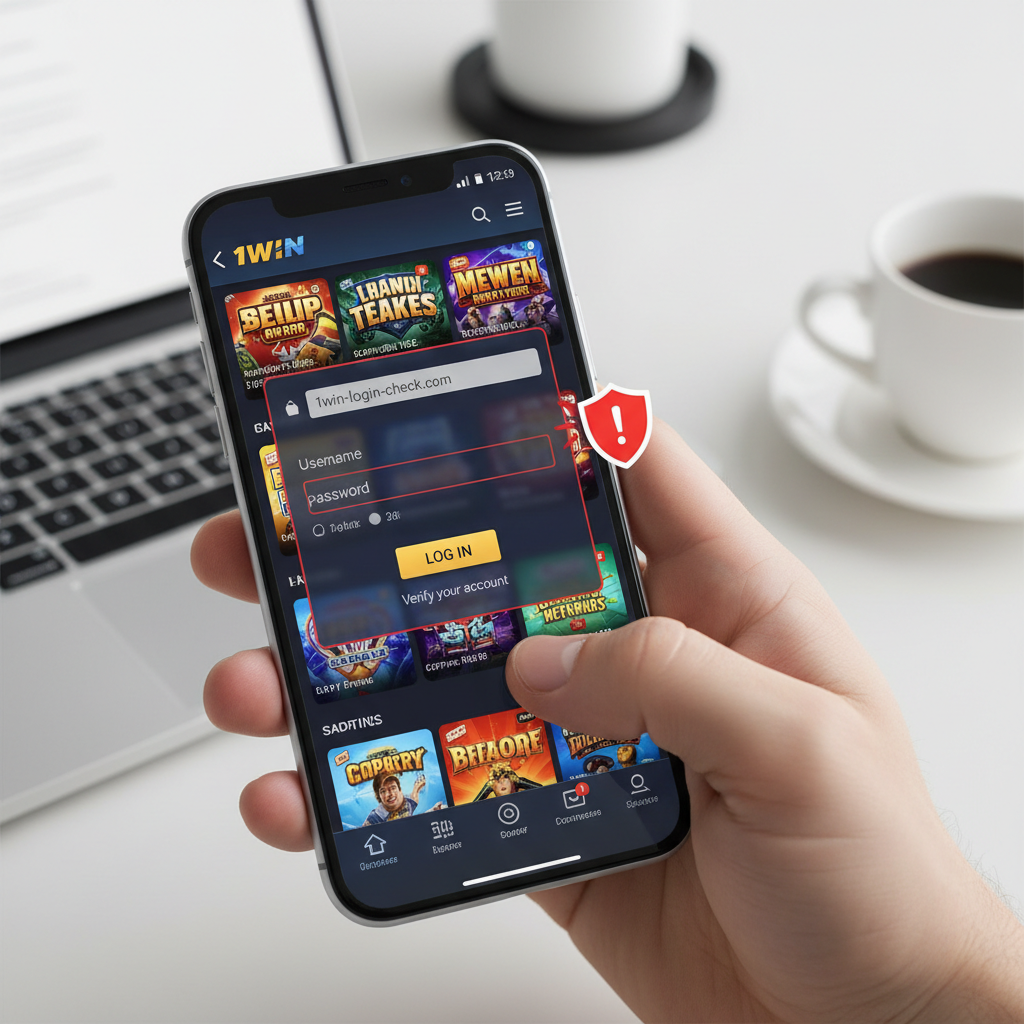
Inspect a destination before signing in
Before entering credentials, inspect the complete destination shown in the browser or app. When checking a sign-in address, identify the complete hostname rather than trusting a familiar brand word. A hostname includes any subdomains, while the path follows it after a slash. A brand name in a subdomain or path does not prove who controls the registered domain. If the structure is confusing, do not guess. Close the page and use an independent route.
Pay attention to misspellings, extra words, unexpected separators, and characters that can be mistaken for one another. A familiar name embedded in a longer, unrelated host is not enough to establish trust. Also consider how you arrived at the page: a destination opened from an unsolicited message deserves more scrutiny than one reached through a route you initiated. A secure-connection indicator, where shown, protects the connection to the host displayed; it does not prove that the host is legitimate.
On a small screen, the browser may show only part of a destination. Use the browser’s address display or page information controls, if available, to inspect more of it before proceeding. Do not rely on a cropped preview or a button label. If you cannot confidently distinguish the intended destination, leave the page without entering details.
| What to inspect | Potential concern | What to do |
|---|---|---|
| The host name | A changed spelling or an unrelated host containing a familiar word | Stop if it does not match a destination you independently expect. |
| The surrounding address structure | Extra subdomains or confusing separators | Do not assume that a brand-like word identifies the host. |
| The path after the host | A page reached through an unexpected or misleading route | Verify the route separately before signing in. |
| The connection indicator | A secure connection mistaken for proof of identity | Check the host as well; the indicator alone is not enough. |
Choose an independent route
When a message asks you to sign in, avoid using its embedded button or destination as your only way to reach the account. Instead, open a previously saved bookmark that you created and trust, use an official app you already installed from a trusted source, or enter a known destination yourself if you are certain of it. These options reduce dependence on the message, but they still require care: bookmarks can become outdated, and an app should be checked before installing or updating it.
If you are unsure what the correct route is, use contact details from a source you already trust, such as earlier verified correspondence or materials you obtained independently. Do not use a phone number, reply address, or help link supplied only in the questionable message. Ask whether the request is genuine without sharing your password or a sign-in code. If the sender cannot be verified, do not proceed based on reassurance alone.
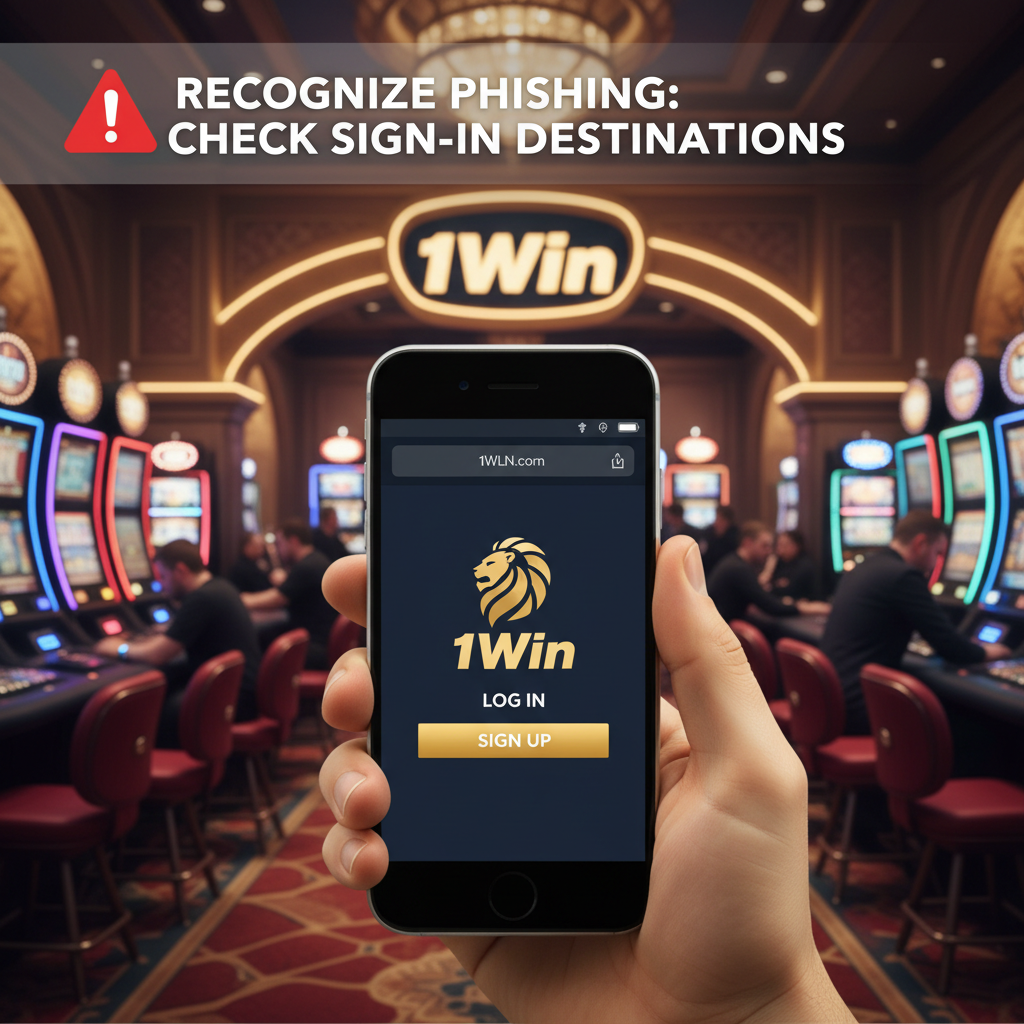
| Route | Useful when | Check to keep in mind |
|---|---|---|
| A bookmark you created earlier | You need to revisit a familiar sign-in page. | Confirm it still points to the expected destination. |
| An app already installed from a trusted source | You normally use that app for account access. | Do not install a new app from a message prompt. |
| Independently verified support details | You need to confirm an unusual request. | Find the details separately rather than using the message itself. |
Respond to a suspected phishing attempt
If you have only received a suspicious message, do not engage with it. Use the reporting or blocking controls offered by your mail or messaging service, if available, and follow that service’s guidance. Avoid forwarding the message to other people without warning them. If it appears to involve a workplace or shared account, notify the appropriate security contact through a known channel.
If you entered a password on a page you now doubt, act promptly from an independently verified route. Change that password, and change it anywhere else you reused it. If the account offers a way to review active sessions or sign out other devices, consider using it. If multifactor authentication is available, enable it or review its settings through the verified account interface. Never share a new code with someone who contacts you unexpectedly.
If you provided other sensitive information, consider what could be affected and contact the relevant provider through independently verified details. Watch for unfamiliar account activity and follow the provider’s instructions. Keep a record of what happened and when, without retaining or circulating exposed secrets unnecessarily.
| What happened | Practical next step |
|---|---|
| You received a message but did not interact | Do not respond; use available reporting and blocking controls. |
| You opened a page but entered nothing | Close it and avoid downloading files or granting permissions. |
| You entered a password | Change it through a verified route and review account access options. |
| You shared additional sensitive information | Contact the relevant provider independently and monitor for misuse. |
Build a repeatable safety check
A consistent routine is easier to use under pressure than a collection of isolated warnings. Before you act on an unexpected request, pause, assess the message, inspect the destination, and choose an independent route when anything seems uncertain. For readers seeking 1win phishing awareness guidance, these checks apply without assuming that any particular security controls exist on the website.
Keep passwords unique so that a disclosure on one service does not automatically expose another. A reputable password manager may help create and store distinct credentials, but protect its own access carefully. Keep devices and software updated through their normal, trusted update processes. These measures do not make phishing impossible, but they can reduce the consequences of a mistake and make suspicious activity easier to notice.